
AI Image Text Enhancer for Clearer, More Readable Photos
Sharpen blurry text, reduce noise, and improve contrast in screenshots, scanned documents, signs, labels, and photographed notes with an online image text enhancer.
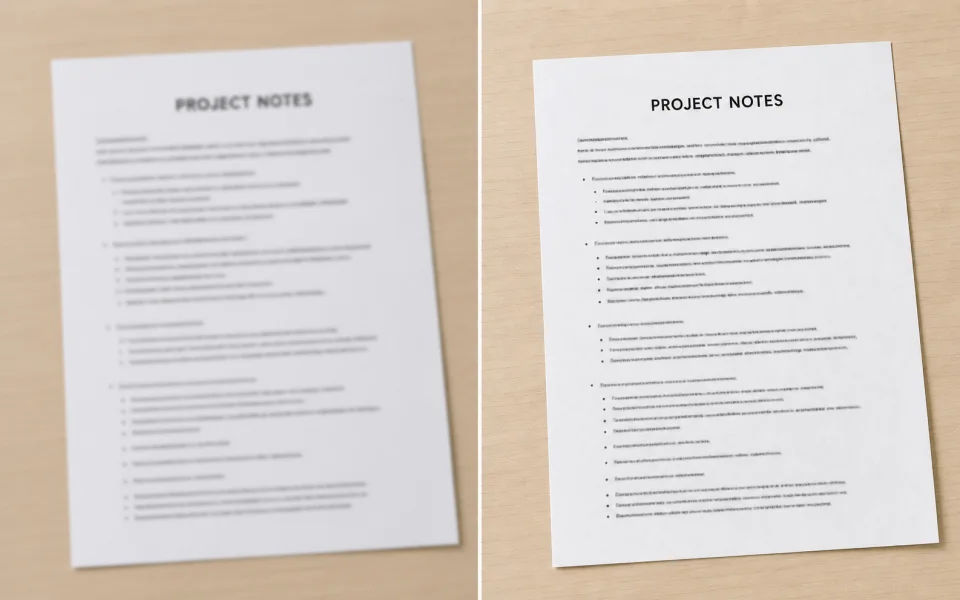
Enhance Images with Standard or Ultimate AI
Upload an image, choose Standard for fast upscaling or Ultimate for the highest quality restoration, then download a sharper result. Supported formats: JPG, PNG, WebP.
How to Enhance Blurry Text in an Image
Improve text visibility in three simple steps without manually adjusting sharpness, contrast, and noise controls.
Upload the Image
Choose a JPG, PNG, or WebP screenshot, document photo, sign, receipt, label, or other image containing text.
- No credit card required
- Instant processing
- Secure cloud storage
Drop video here
MP4, MOV, WEBM
Choose an Enhancement Level
Use Standard for fast cleanup or Ultimate when small lettering, compression artifacts, or heavier blur need stronger processing.
- No credit card required
- Instant processing
- Secure cloud storage
Enhancement Settings
Review and Download
Inspect the enhanced letter edges and surrounding details, then download the clearer image for reading, sharing, or archiving.
- No credit card required
- Instant processing
- Secure cloud storage

Purpose-Built Image Enhancement for Text Clarity
The enhancer improves the pixels around text and the rest of the image together, helping words stand out without turning the photo into a flat black-and-white scan.
Sharper Character Edges
Refine soft letter boundaries caused by low resolution, camera shake, resizing, or social-media compression so text is easier to inspect.
- Cleaner outlines
- Better small-text visibility
- Improved local detail
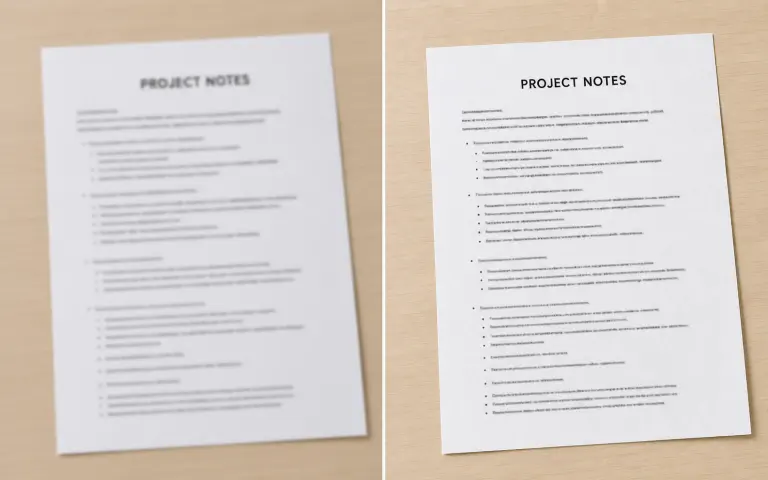
Noise and Compression Cleanup
Reduce grain, blockiness, and ringing artifacts that compete with fine strokes in screenshots, scans, and low-light photos.
- Less grain
- Fewer JPEG artifacts
- Cleaner backgrounds
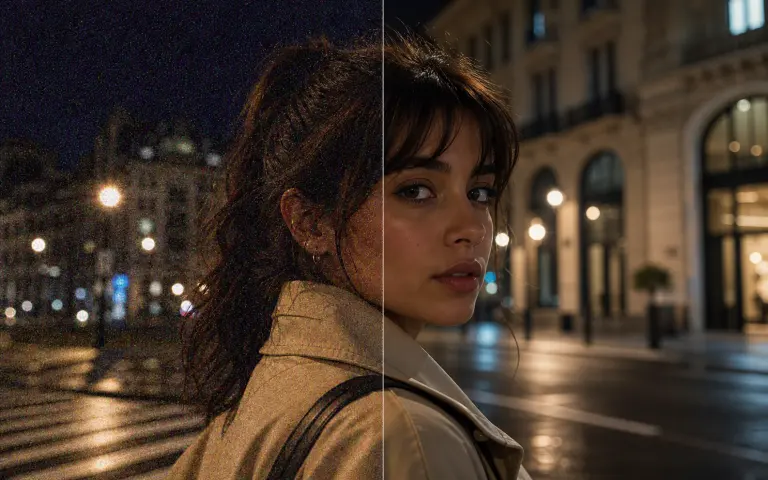
Balanced Text Contrast
Improve separation between lettering and its background while preserving surrounding colors, graphics, and photographic detail.
- Clearer foreground
- Natural colors
- More legible layouts
Resolution Upscaling
Create a larger output so tiny labels, captions, and interface text can be viewed more comfortably on modern screens.
- Larger output
- Sharper display
- Better archive copies
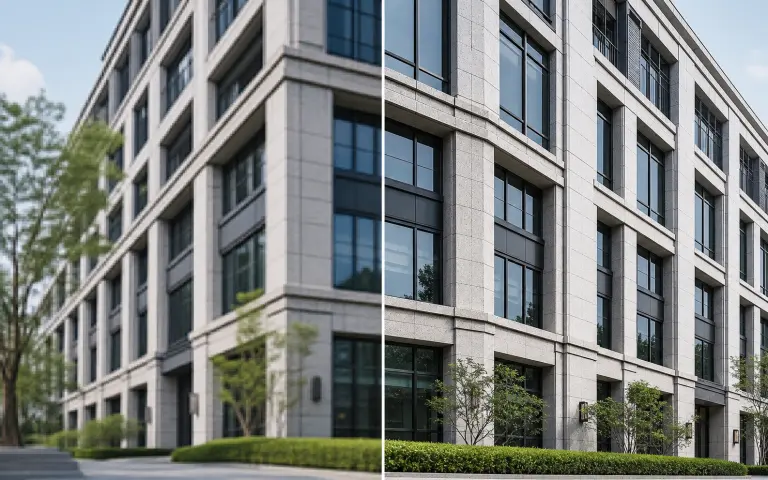
Enhance Text in Photos, Screenshots, and Scans
Use the AI text enhancer on common images where lettering has become soft, noisy, compressed, or difficult to distinguish.
Documents and Notes
Improve photographed forms, handwritten notes, printed pages, and classroom materials before reviewing or sharing them.
Screenshots and UI Text
Clean up compressed screenshots, interface labels, charts, code snippets, and message captures.
Signs and Product Labels
Reveal clearer lettering on storefront signs, packaging, menus, serial labels, and instruction panels.
Low-Light Text Photos
Reduce grain and improve contrast when text was captured indoors, at night, or under uneven lighting.
Hover over any card to preview the AI enhancement magic
Why Text Becomes Blurry, Pixelated, or Hard to Read
A useful image text quality enhancer starts by recognizing the source of the damage. Different problems affect letter shapes in different ways, so the best result depends on how much real information remains in the image.
Low Resolution and Tiny Characters
Small screenshots, cropped images, and old web graphics may contain too few pixels to describe thin strokes, punctuation, and spaces clearly. AI upscaling can create a larger working image and refine the visible edges.
- Larger text
- Cleaner edges
- Better zooming
JPEG and Messaging Compression
Saving, sharing, or reposting an image repeatedly can add blocks, halos, and color noise around letters. Cleanup should reduce those artifacts before sharpening the remaining text.
- Less ringing
- Fewer blocks
- Cleaner backgrounds
Focus Blur and Camera Shake
A document photographed out of focus or with a moving phone produces soft or doubled strokes. Enhancement can improve mild blur, but severe motion trails may merge separate characters permanently.
- Sharper strokes
- Reduced softness
- Clearer structure
Low Light, Glare, and Uneven Contrast
Dark shadows, reflections, and bright highlights can hide portions of a word. Balanced noise reduction and local contrast may reveal text that is still present without flattening the full photo.
- Reduced grain
- Balanced contrast
- More visible lettering
Perspective and Curved Surfaces
Text on angled documents, bottles, packaging, or signs may become compressed on one side. Enhancement improves clarity, but straightening the image before processing can produce a more consistent result.
- Better capture
- More even detail
- Improved OCR input
Why Generic Image Upscaling Can Distort Existing Text
Top-ranking text enhancer pages treat letter preservation as a separate problem from ordinary photo sharpening. Text has strict geometry: one misplaced stroke can change a number, name, or entire word.
Over-Sharpening Creates False Strokes
Strong global sharpening can add halos and dark edges that make letters appear doubled. A text-aware workflow favors controlled local detail instead of applying the same strength everywhere.
Denoising Can Erase Thin Characters
Aggressive smoothing may mistake punctuation, light fonts, or small serial numbers for noise. Detail-aware cleanup must preserve narrow lines while reducing the surrounding grain.
AI Detail Is Not Documentary Evidence
When the source is severely blurred, an enhancement model can infer a plausible-looking shape that was not actually readable. Verify names, dates, prices, medical text, and legal text against another source.
Enhancement and OCR Solve Different Jobs
Enhancement makes the image clearer; OCR extracts editable characters. For a document text enhancer workflow, improve the pixels first, run OCR second, and proofread the extracted result last.
How AI Improves Text Without Extracting It
This tool enhances the image itself. It is useful before reading or OCR, but it does not transcribe, translate, or guarantee recovery of characters missing from the source.
Local Detail Analysis
The model evaluates nearby edges, textures, and contrast instead of applying one aggressive sharpening filter to the entire image.
Artifact-Aware Cleanup
Denoising and upscaling work together to reduce distracting artifacts while retaining useful strokes and layout detail.
Cloud Processing
Run the image text enhancer online without installing desktop software or relying on a local graphics card.
Who Uses an AI Image Text Enhancer?
A practical clarity tool for anyone working with text that is trapped inside an imperfect image.
Students and Researchers
Improve captured notes, whiteboards, source pages, and presentation slides before studying or organizing references.
Business Teams
Make labels, forms, receipts, diagrams, and archived screenshots clearer for internal review and documentation.
Online Sellers
Improve product labels, packaging, comparison charts, and size guides so shoppers can inspect important details.
Content Creators
Clean up caption graphics, thumbnails, tutorial screenshots, and social posts before publishing them again.
All processed securely in the cloud. No heavy hardware needed.
Flexible Plans for AI Image Enhancement
Choose the plan that fits your image workflow. Start with free image enhancement, then upgrade for full-resolution downloads and higher-volume processing.
Loading magic...
AI Image Text Enhancer FAQ
Answers about enhancing blurry text in photos and images online.